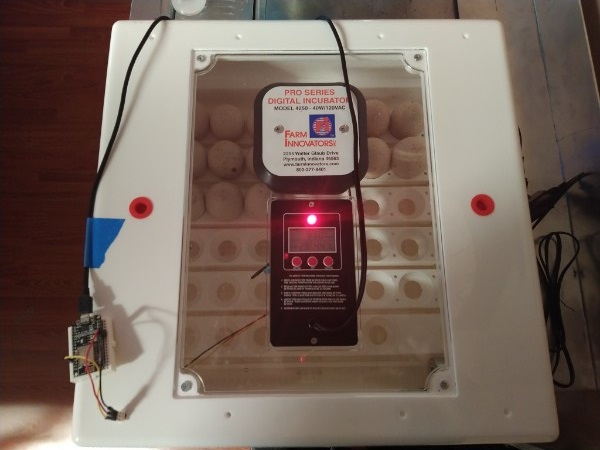
We had 12 eggs to get in the incubator, but Anya got six more eggs at lunch and another egg later in the afternoon. So we’ve got 19 eggs in the incubator
We had 12 eggs to get in the incubator, but Anya got six more eggs at lunch and another egg later in the afternoon. So we’ve got 19 eggs in the incubator
We’re setting up the incubator tonight to get our first dozen turkey eggs going.

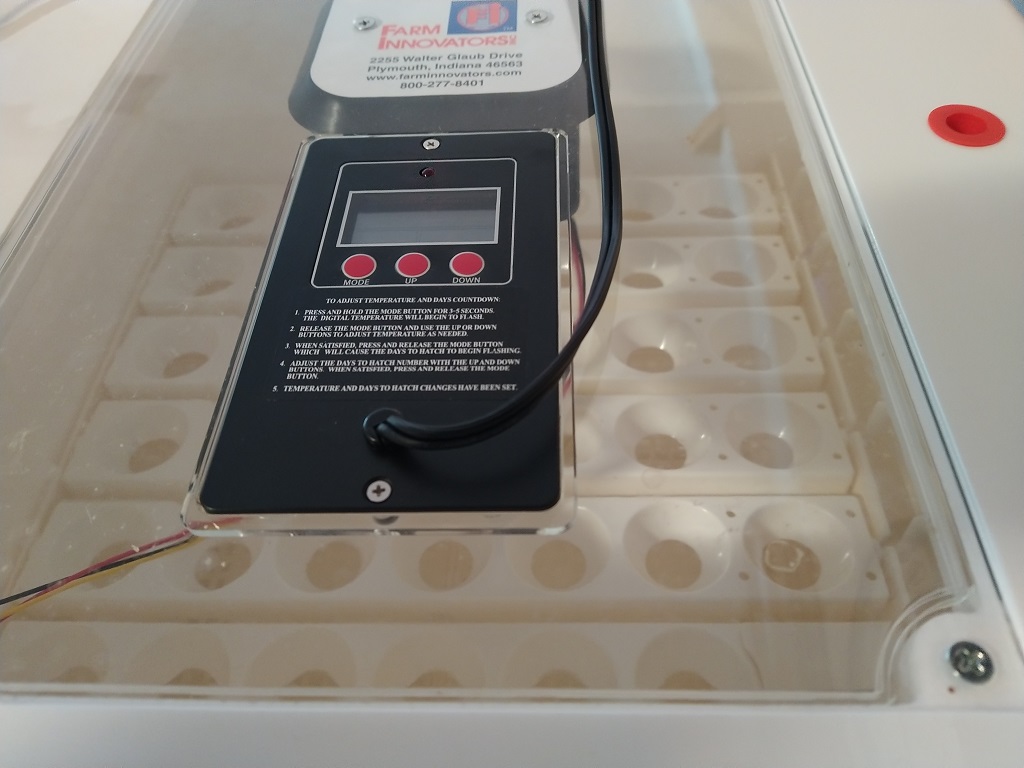
I need to leave the incubator sit overnight to get the temperature and humidity regulated. Tomorrow, we’ll be putting the eggs into the incubator.
Notes:
General:
Pointy end down, may need to leave empty space between eggs so they fit
Temperature
Forced-air incubator, so set to 99.5 degrees F (monitoring for temps between 99 and 100 F)
Humidity
First 25 days, relative humidity 50-60%
Final three days, increase humidity to 65-70%
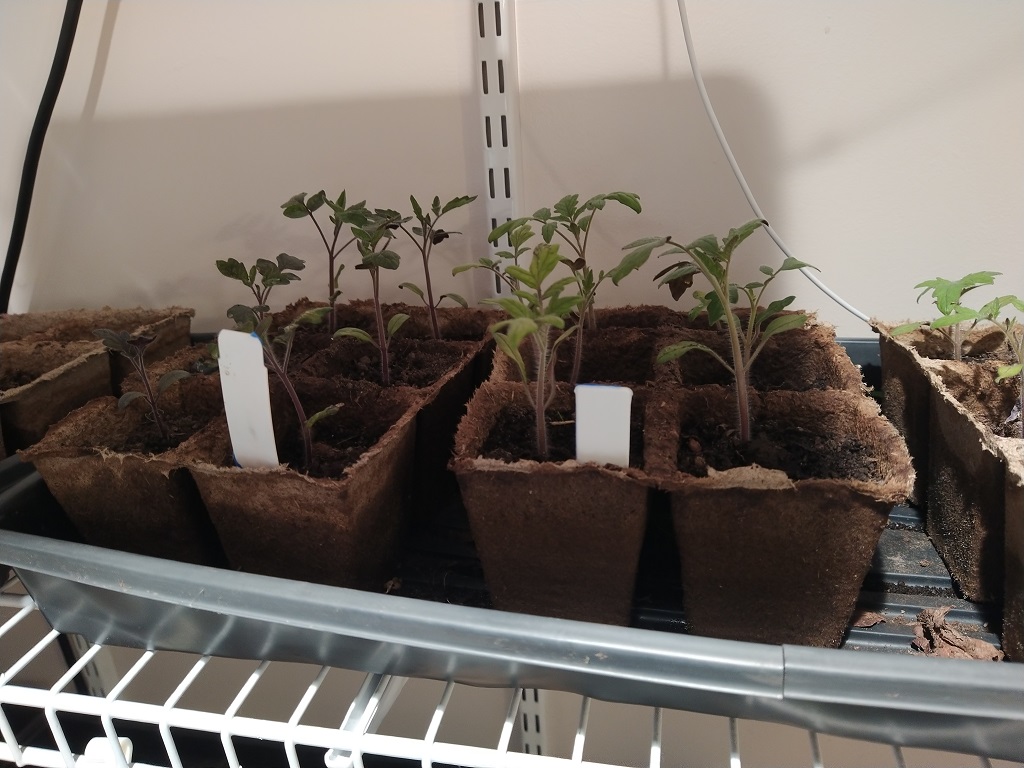
The tomato plants are starting to get big — still a few weeks before we can plant them outside, but we have plenty of healthy plants.
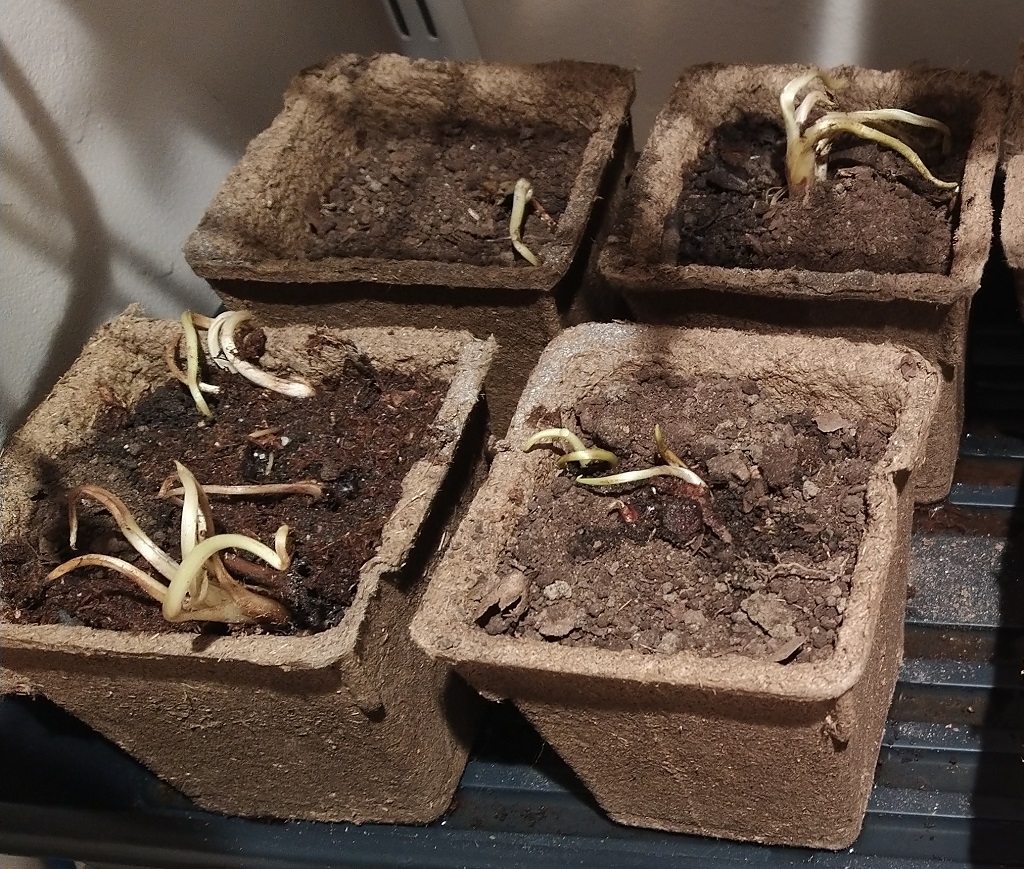
I had basically given up on the asparagus (they were older seeds), but I finally have five plants sprouted — this is part of my endeavor to get more plant once / harvest yearly stuff growing. 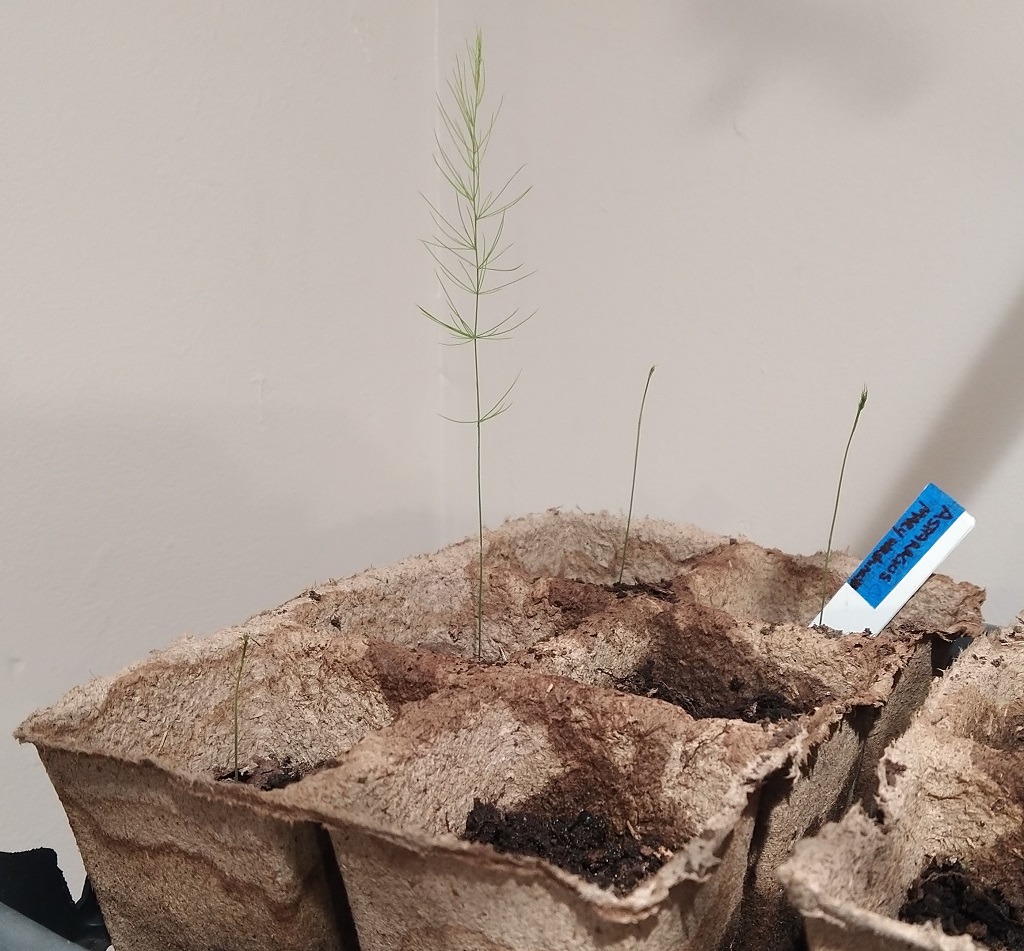
And then there’s the chicken chow — this is Bocking 14 comfrey. It doesn’t go to seed, but provides a high-protein leafy food for chickens and turkeys.
That didn’t take long — https://www.engadget.com/three-samsung-employees-reportedly-leaked-sensitive-data-to-chatgpt-190221114.html
Leaking data is obviously a big problem if the user base is “anyone with an internet connection”, but potentially not great even for an internal implementation of an AI chatbot.
Content management platforms, in the early days, had a big problem with search because the indexing engine had super-user rights – so searching for “acquisition” would give you links that you couldn’t read. Even if the titles didn’t tell you anything (does “Project OPUS” or “Project Golden Falcon” have any meaning to you?), the dates & authors told you something (hey, there’s a bunch of new docs the C-levels are creating about acquisitions this past few weeks … sure that doesn’t mean anything!). Eventually any halfway decent content management platform understood permissions and at least attempts to filter results based on what you have permission to view.
AI is different, unfortunately in a way that makes implementing that type of security more difficult. Other than individualizing the trained AIs for each user (so info you feed in is only going to be reflected in your future results) or not training based on user input (only use stuff that’s openly readable already) … it would be rather challenging to filter an implementation so it knows stuff it’s been told but doesn’t convey that information to unauthorized individuals.
The default size limit for CSV reports in Kibana is 10 meg. Since that’s not enough for some of our users, I’ve been testing increases to the xpack.reporting.csv.maxSizeBytes value.
We’re still limited by the ES http.max_content_length value — which the documentation seems pretty confident shouldn’t be increased because the system can become unstable. Increasing the max Kibana report size to 100mb just yields a different error because ES doesn’t like it. 75 exhausted the JavaScript heap (?) – which I could get around by setting NODE_OPTIONS=–max_old_space_size=4096 … but that just led to the server abending whenever a report was run (in fact, I had to remove the reports I tried to run from the server to get everything back into a working state). Increasing the limit to 50 meg, though, didn’t do anything unreasonable in dev. So somewhere between 50 and 75 meg is our upper limit, and 50 seemed like a nice round number to me.
Notes on resource usage – Data is held in memory as a report is created. We’d see an increase in memory/CPU usage while the report is being generated (or, I guess more accurately, a longer time during which the memory/CPU usage is increased because if a 10 meg report takes 30 seconds to run then a 50 meg report is going to take 2.5 minutes to run … and the memory/CPU usage is pretty much the same during the “a report is running” period).
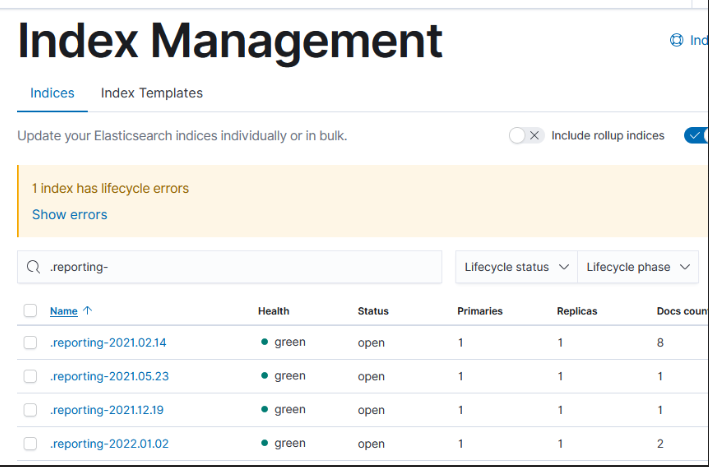
Then, though, the report is stashed in ElasticSearch for user(s) to retrieve within .reporting* indicies. And that’s where things get a little silly — architecturally, this is just another index; it ages off with a lifecycle policy if one exists. But it looks like they never created a lifecycle management policy. So you can still retrieve reports run a little over two years ago! We will certainly want to set up a policy to clean up old reports … just have to decide how long is reasonable.
A total of about 6 gallons of syrup this year — 3.5 gallons on the 6th of March and another 2.5 gallons on the 5th of April. We tapped 39 trees (some with two taps — we need to log the type of tree & how many taps get put in!) including some on the new farm land.
Our patching schedules are algorithmic – the 1st Tuesday of the month, the 3rd Wednesday of the month, etc. But that’s not particularly useful for notifying end users or for us to verify functionality after patching.
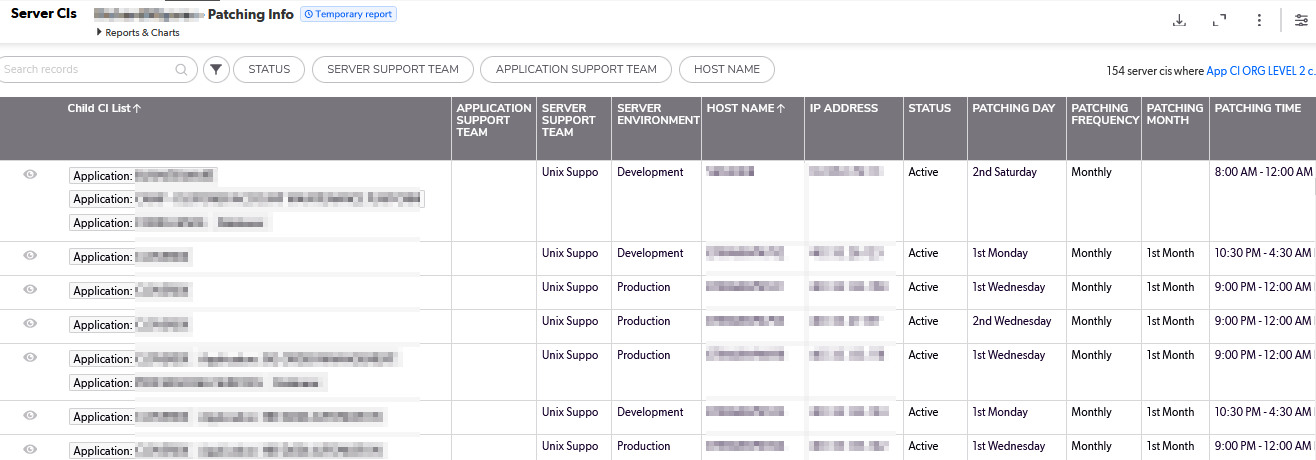
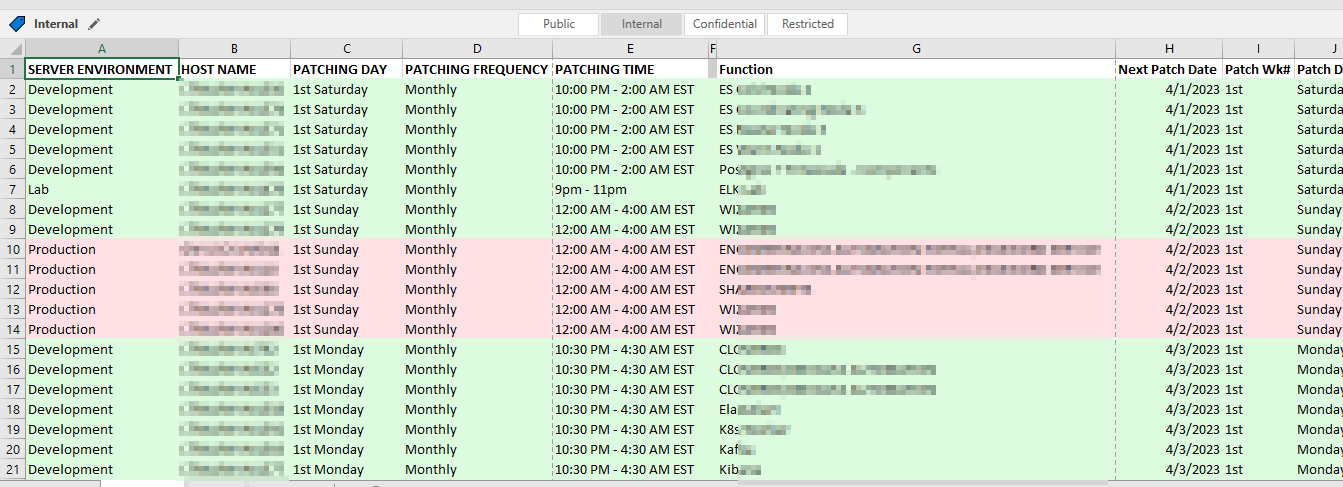
Long term, I think we can pull the source data from a database and create appointment items each month for whatever list of servers will be patched that month based on a relative date (so no one has to add new servers or remove decommissioned servers). But, short term? I really wanted a way to see what date a server would be patched. So I created a but of a convoluted spreadsheet to produce this information based on a list of servers and patching schedule patterns.
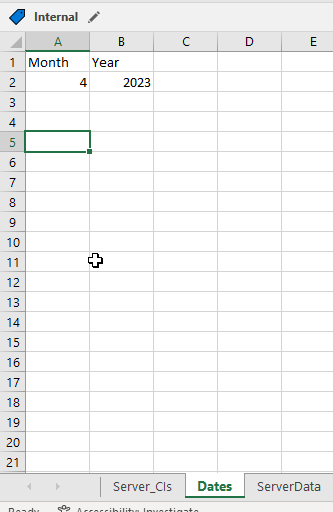
There are two “extra” tabs used – “Dates” used to say what month and year I want the patching dates for
And “ServerData” which provides a cross-reference between the server names and a useful description.
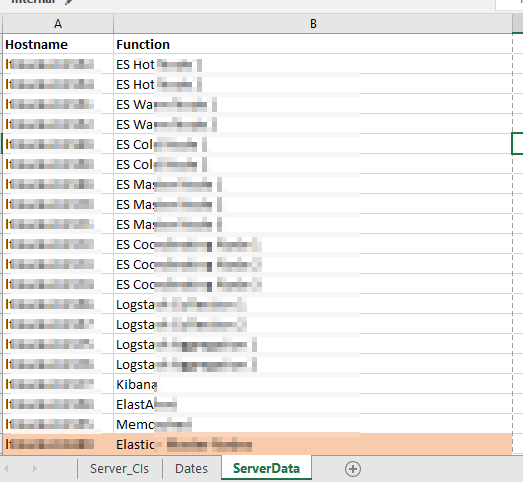
There are then a series of formulae used to add columns to our source data. First, the “Function” is populated in column G with a VLOOKUP =VLOOKUP(B2,ServerData!A:B,2,FALSE)
Columns I and J break the “1st Saturday” into the two components – week of month and day of week –
I =LEFT(C2,3)
J =RIGHT(C2,LEN(C2)-4)
Columns K and L then map these components into numeric values I can use in a formula:
K =IF(I2=”1st”,1,IF(I2=”2nd”,2,IF(I2=”3rd”,3,IF(I2=”4th”,4,”Unscheduled”))))
L =IF(J2=”Sunday”,1,IF(J2=”Monday”,2,IF(J2=”Tuesday”,3,IF(J2=”Wednesday”,4,IF(J2=”Thursday”,5,IF(J2=”Friday”,6,IF(J2=”Saturday”,7,”Unscheduled”)))))))
And finally a formula in column H that turns the week of month and day of week values into an actual date within the month and year on the “Dates” tab:
H =DATE(Dates!$B$2,Dates!$A$2,1+7*K2)-WEEKDAY(DATE(Dates!$B$2,Dates!$A$2,8-L2))
Voila – I have a spreadsheet that says we should expect to see this specific list of servers being patched tonight.
We have our first daffodil blooms of the year — Anya noticed some of the little ones by the detached garage had bloomed. There are a few larger ones in the same area that flowered.

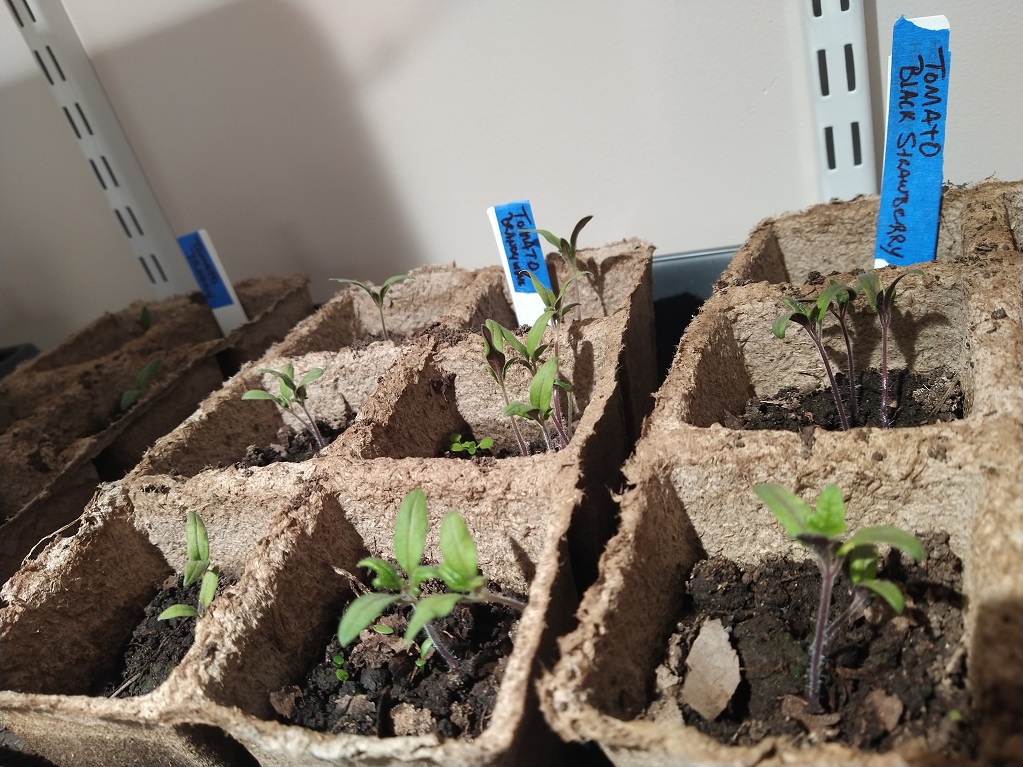
We have tomato and pepper sprouts! Still waiting for the watermelons, though … I really hope we get to eat some fresh-from-the-vine watermelon this year.
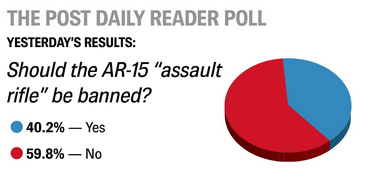
The local paper had a reader poll asking if “the AR-15” should be banned — with a decent number (especially in our heavily Republican area) saying yes.
There are a number of things I don’t get about this proposal. Firstly, I am willing to assume they mean any AR-style weapon because banning Colt’s AR-15 but allowing all of the derivatives seems particularly pointless. But … what is the point of banning that one style semi-automatic rifle? From the police pictures, it looks like Tennessee shooter had a KelTec SUB2000 Carbine Rifle, a LSA Grunt .300 Blackout Rifle, and a Smith & Wesson M&P9 Shield EZ. Only one of those would be banned if AR-style weapons were banned, but any could kill a lot of people quickly. Even if the ban encompassed all high-capacity weapons, the Shield — with its 8 round magazine instead of the higher capacity magazines normally found in the two rifles … you can buy ten mags. Fill ’em up, and quickly eject the empty one & reload a full magazine. If we ban X, then Y will become the weapon of choice. OK, ban Y! Now it’s Z. Or A. Or L.
And that doesn’t take into account what’s already out there today. In 2020, the firearm industry trade association said there were 19.8 million “modern sporting rifles” in circulation since 1990. Stopping the sale of new guns of a particular style seems like theater — an ineffective non-answer to the question. Even a far more effective idea like limiting all production weapons to five seconds per round still encounters the “what is out there is out there” problem. The idea of banning a style of weapon makes me think of the ineffective “fix” to the student debt problem — university is incredibly expensive. Forgiving the debt of a time-slice of students doesn’t fix the fundamental problem.